

Connect Your Phone to an LED Projector: Wired & Wireless
How can I connect my phone to my LED projector?
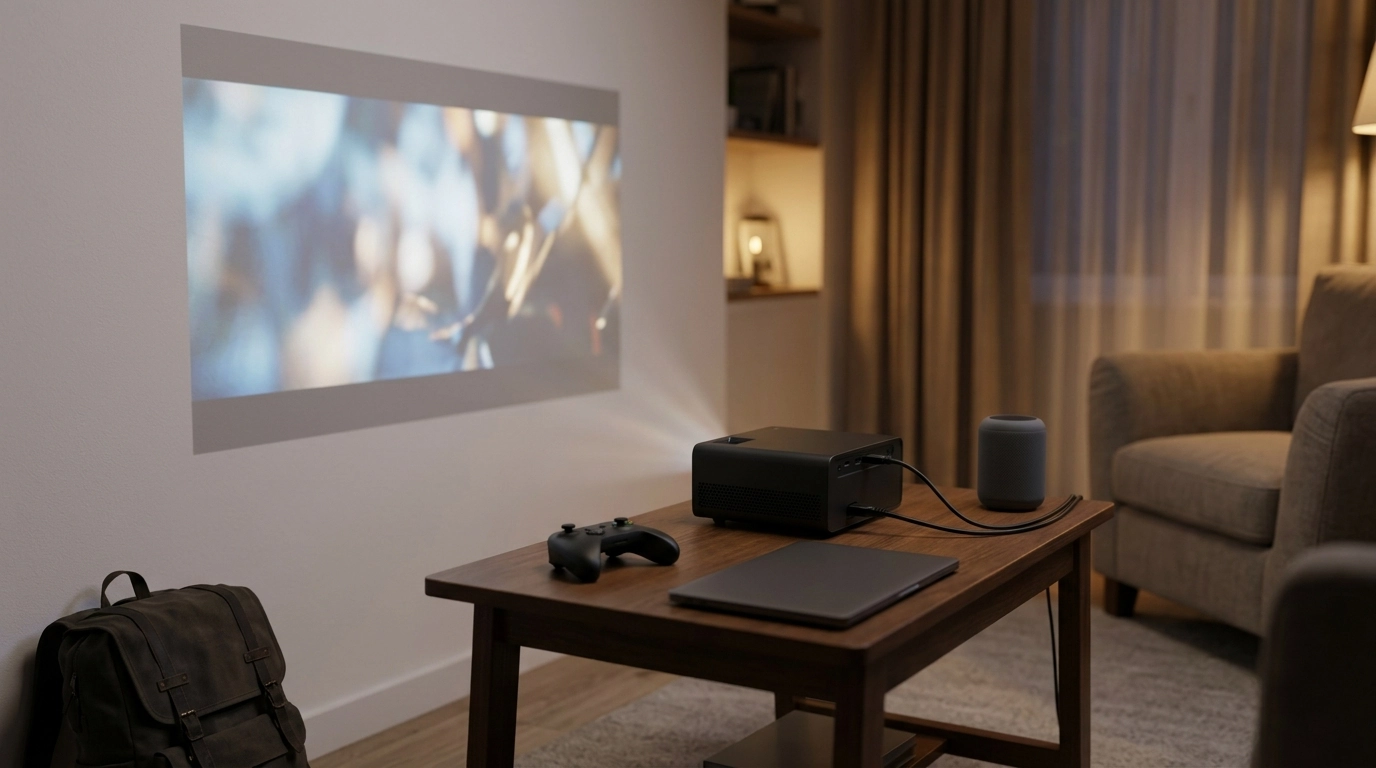
Connecting your phone to an LED projector usually comes down to two options: a wired connection (most reliable) or wireless casting (most convenient). Our team recommends starting with wired if you want the smoothest video for movies and gaming, then using wireless when you want quick setup on the go.
Option 1: Use a wired connection (best for stable video)
For iPhone (Lightning): Use a Lightning-to-HDMI adapter, then run an HDMI cable from the adapter to the projector’s HDMI input. Plug the adapter into power if it has a charging port to prevent battery drain during playback.
For iPhone (USB-C): Use a USB-C-to-HDMI adapter (or USB-C hub with HDMI), then connect HDMI to the projector.
For Android (USB-C): Many phones support video-out over USB-C (often called DisplayPort Alt Mode). Use a USB-C-to-HDMI adapter and connect to the projector. If your phone doesn’t support video-out, wired HDMI may not work—wireless casting or a compatible streaming stick is typically the next step.
Option 2: Cast wirelessly (fast setup, depends on Wi‑Fi)
Android: Look for Cast, Smart View, or Screen Cast in your phone’s quick settings, then select your projector (or connected casting device). Some projectors use Miracast-style pairing; others work best when both devices are on the same Wi‑Fi network.
iPhone: Use Screen Mirroring from Control Center to connect to an AirPlay-capable projector or casting device. For projectors without AirPlay, a compatible streaming device is often the simplest workaround.
Option 3: Use built-in apps (for smart projectors)
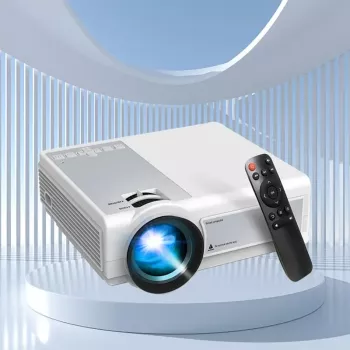
If your projector has a smart interface, you may be able to sign into streaming apps directly and skip phone mirroring entirely. This can reduce lag and notifications popping up on screen. For more setup tips for portable smart models, visit our guide: mini LED portable smart projector guide.
Quick fixes if it won’t connect
Confirm the projector is set to the correct input (HDMI, Screen Mirroring, etc.), reseat cables, and restart both devices. If audio is out of sync over wireless, switch to HDMI or connect a speaker via Bluetooth (if supported) for better placement and volume.
FAQ
Why is my projector not playing sound from my phone?
Your projector may be receiving video but sending audio to a different output, or the connection type may limit audio support. Try switching the projector’s audio output to internal speaker, reconnecting, or using HDMI instead of wireless casting.













Leave a comment